Organize with AI
Claude reads your library and proposes a plan — moves, new projects, merges, renames — and nothing changes until you have checked it and clicked Apply.
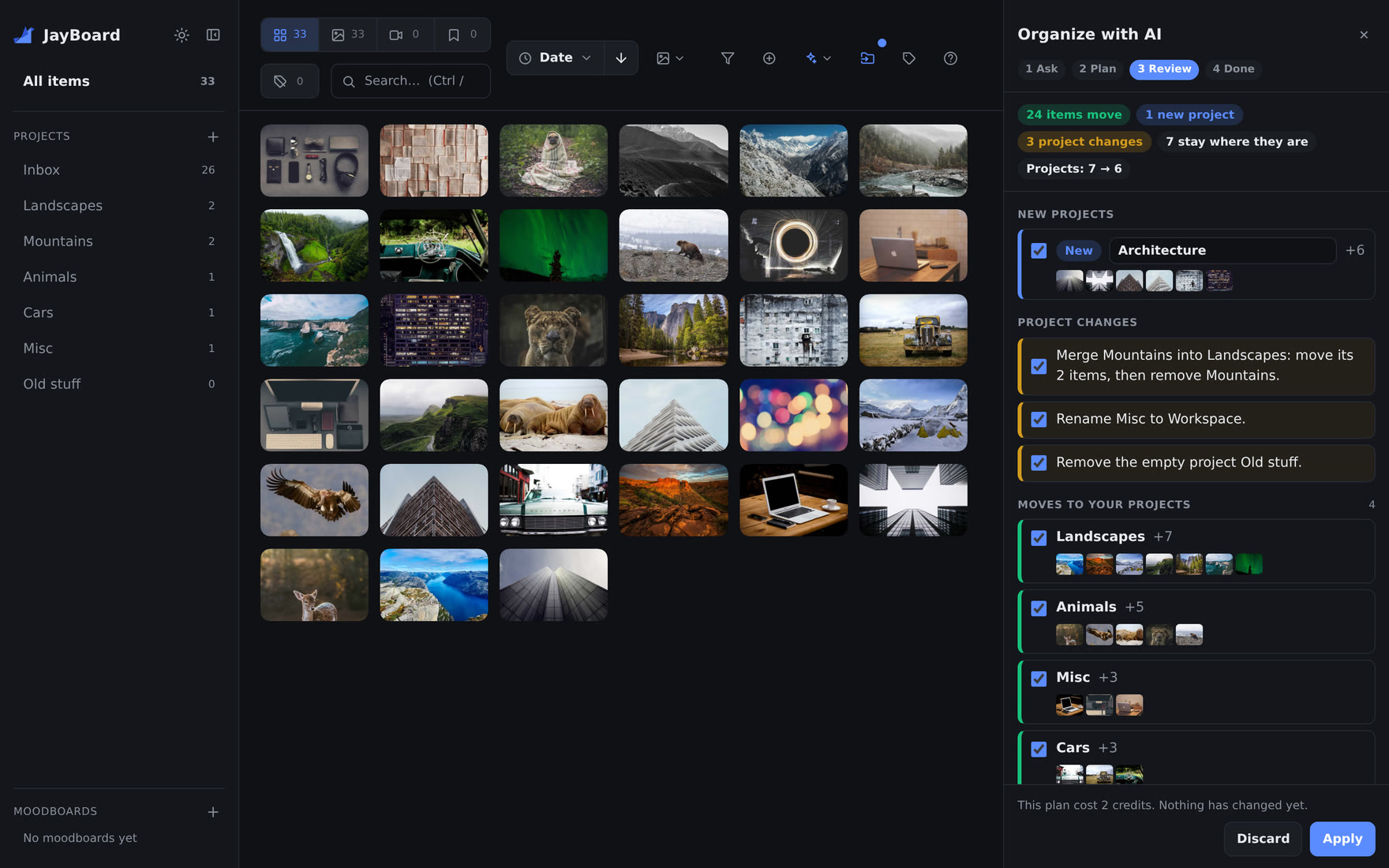
Capturing takes a click and sorting takes an afternoon, so the Inbox grows. A library with many projects drifts as well: Fonts next to Typography, a project that is empty, one that should be two.
A plan you approve#
The new Organize button sits in the toolbar, right of ✨. Choose the projects to organize, say what you want — or start from a preset — and click Make a plan. Claude proposes:
- items to move, into any of your projects;
- new projects, for clear groups that no project fits;
- merges, renames, and the removal of projects left empty.
The review lists every part with a checkbox. Uncheck what you do not want, rename a new project if its name is wrong, and Apply makes the rest in one step.
The plan is made on the server, so you can close the panel or reload the page while it works. A dot on the button says a plan is on its way or waiting for you.
What it will not do#
It never deletes an item, and never changes a tag or a description. It changes only the projects you chose, and never renames, merges or removes the Inbox. If you move items while a plan waits, your moves win.
Apply is final — there is no undo. Nothing is deleted, so an item can always be moved back by hand.
It reads text, not pictures#
The AI reads each item's type, tags and description, not the image. That makes a plan cheap: about 5 credits for 100 items. An item with neither stays where it is, so a library that is annotated sorts best.
Full detail in Organize with AI.
Elsewhere#
- On a phone, the toolbar's buttons are in a More menu on the right, so the toolbar fits on one row.
- The image size control sits beside Sort.
- The uploads tray moves aside when the tag panel or the Organize panel is open, so it never covers them.
- A moodboard's top bar no longer shows your account picture.